 SSD vs HDD vs NVMe: What’s the Difference and Which Should You Upgrade To?
If you’re upgrading or replacing a hard drive, you’ve probably seen terms like:
-
HDD
-
SSD
-
NVMe
-
SATA
-
M.2
-
Hybrid (SSHD)
It can get confusing quickly.
This guide breaks everything down in simple terms so you can make the right decision for your system and budget.

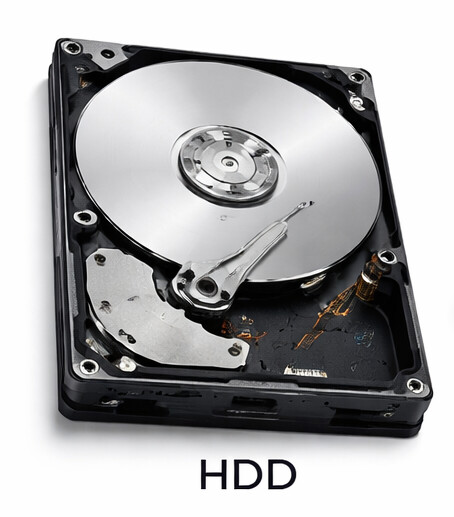
 HDD (Hard Disk Drive) – The Traditional Drive
How it works:
An HDD has spinning magnetic platters and a moving arm that reads and writes data.
Pros:
-
Cheapest per GB
-
Good for large storage (1TB–8TB+)
-
Reliable for backups and archives
Cons:
-
Slow
-
Mechanical parts can fail
-
Noisy compared to SSD
Typical Speed:
80–160 MB/s
Best For:
-
File storage
-
Backups
-
Media libraries
-
Secondary drives
 Not recommended for modern operating systems unless budget is extremely limited.

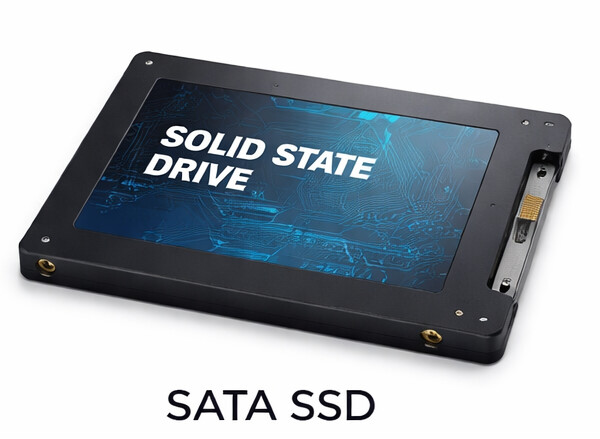
 SSD (Solid State Drive) – The Modern Standard
How it works:
No moving parts. Uses flash memory (like a large USB drive).
Pros:
-
Much faster than HDD
-
Silent
-
More durable
-
Faster boot times
Cons:
- More expensive than HDD (but prices have dropped significantly)
Typical Speed:
~500 MB/s (SATA SSD)
Boot Time Comparison:
-
HDD: 45–90 seconds
-
SSD: 5–20 seconds
Best For:
-
Windows/macOS system drive
-
Laptops
-
Office PCs
-
Gaming PCs
-
Trading platforms
-
Everyday performance upgrades
 If your computer feels slow, upgrading from HDD to SSD is the biggest improvement you can make.

 NVMe SSD – The High-Speed Version of SSD
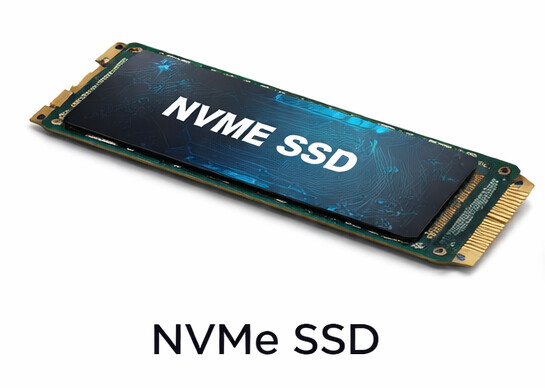
NVMe is not a different “type” of storage like HDD vs SSD — it’s a faster interface for SSDs.
Key Difference:
-
SATA SSD uses older SATA connection.
-
NVMe SSD uses PCIe lanes directly from the motherboard.
Typical Speed:
3,000–7,000+ MB/s
That’s 6–14× faster than SATA SSD and 20–40× faster than HDD.
Best For:
-
Video editing
-
Large file transfers
-
Gaming load times
-
High-performance workstations
-
Developers & virtualization
 Important:
Your motherboard must support NVMe (M.2 slot with PCIe support).

 Hybrid Drives (SSHD) – A Compromise
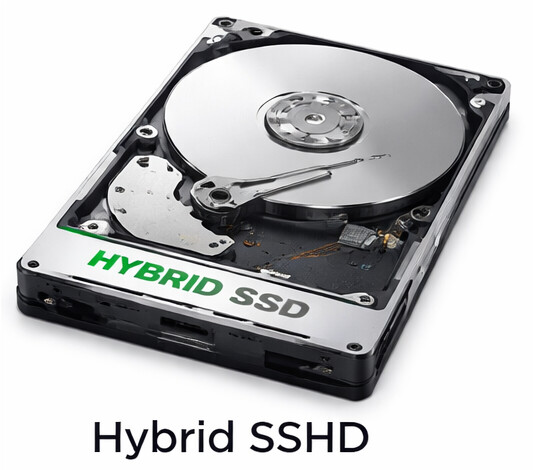
Hybrid drives combine:
-
Traditional HDD
-
Small built-in SSD cache (8–32GB)
They automatically store frequently used files in the SSD portion.
Pros:
-
Faster than HDD (sometimes)
-
Larger storage than SSD at lower cost
Cons:
-
Still mechanical
-
Not close to true SSD performance
-
Less common in modern builds
 In most cases today, it’s better to just get a full SSD.
 Quick Comparison Table
| Type | Speed | Noise | Durability | Cost | Best Use |
|---|---|---|---|---|---|
| HDD | Slow | Audible | Mechanical wear | Cheapest | Storage/Backup |
| SATA SSD | Fast | Silent | Very durable | Affordable | OS & general use |
| NVMe SSD | Very Fast | Silent | Very durable | Slightly higher | Performance systems |
| Hybrid | Medium | Audible | Mechanical | Mid | Budget compromise |
 How to Decide What to Buy
 Choose NVMe if:
-
Your motherboard supports it
-
You want maximum speed
-
You’re building or upgrading a modern system
Choose SATA SSD if:
-
Your system is older
-
You don’t have NVMe support
-
You want a major speed upgrade affordably
Choose HDD if:
-
You only need storage space
-
You’re storing large media files
-
It’s a backup drive
Avoid Hybrid unless:
-
It’s already installed
-
Budget restrictions leave no better option
Real-World Recommendation (2026)
For most users:
 Install a 500GB–1TB SSD for your operating system
Add a larger HDD for storage if needed
If your system supports NVMe:
→ Go NVMe.
If not:
→ SATA SSD is still a massive improvement.
 Before You Upgrade
-
Check if your motherboard supports NVMe (M.2 slot).
-
Confirm drive size compatibility (2.5", 3.5", M.2).
-
Back up your data before replacing drives.
-
Consider cloning vs fresh OS install.
If you’re unsure, feel free to post your system specs in the forum or make contact and we can advise.
 Final Thought
The difference between HDD and SSD is not small — it’s transformational. You should see at least a 30% increase in speed/performance with an upgrade.
If your computer feels slow and still uses an HDD as the main drive, upgrading to SSD is the single best performance improvement you can make.