 Ever Had a Video That Just Wouldn’t Play Properly?
Ever double-clicked a video file and:
-
It wouldn’t open?
-
It had sound but no video?
-
It had video but no sound?
-
It played… but jittery?
-
Or it stuttered even though your PC isn’t old?
On a modern system with decent hardware, the problem often isn’t your computer.
It’s your media player — or more specifically, your codecs.
Let’s talk about why — and take a little trip down memory lane.
 The Codec Pack Era (If You Know, You Know)
Back in the 2000s:
-
Windows Media Player couldn’t play everything.
-
“Codec not found” errors were common.
-
Installing K-Lite Codec Pack was almost a rite of passage.
-
CCCP (Combined Community Codec Pack) became legendary.
-
Some of us tried Shark007 at least once.
Those were different times.
 What Is a Codec (Really)?
Codec = Coder / Decoder
or more precisely:
Encoder / Decoder
or:
enCOder / DECoder
-
The encoder compresses video/audio when creating it.
-
The decoder decompresses it when playing it.
Here’s the key point:
 Most users only need the decoder.
If you’re not creating or exporting video, you do not need encoders installed on your system.
Old codec packs installed:
-
Encoders
-
Decoders
-
Splitters
-
DirectShow filters
-
System-wide components
And that’s where the trouble began.
 When Codecs “Fight” Each Other
Windows used DirectShow to build a playback chain.
Even if you install a single codec pack, once multiple codecs could decode the same format, Windows had to choose one.
Example:
-
DivX and XviD both decode MPEG-4 ASP.
-
They’re compatible formats.
-
But if both are installed system-wide,
Windows might select the “wrong” one.
That could result in:
-
Video but no audio
-
Audio but no video
-
Black screen
-
Playback crashes
-
Stuttering
Not because the file was bad.
Because the filters were conflicting.
This was called a codec conflict.
 A Simple Diagram of What Happens During Playback
Here’s a simplified view of the playback pipeline:
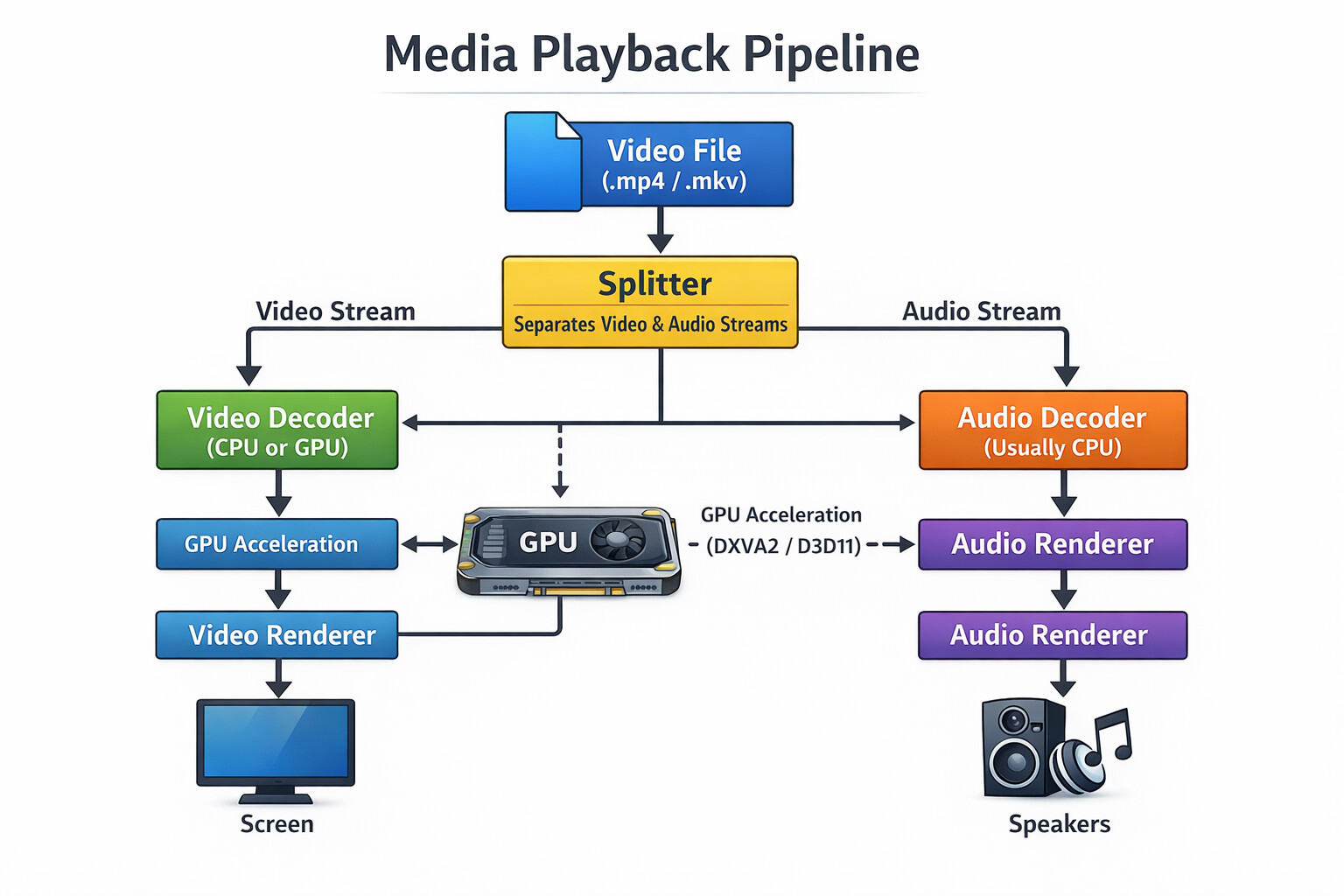
If:
-
The splitter fails → nothing plays.
-
The video decoder conflicts → audio only.
-
The audio decoder conflicts → video only.
-
The renderer struggles → stuttering.
Now imagine multiple decoders installed.
Windows might build a broken chain.
That’s why systems became unstable with too many codec packs.
 CCCP, FFDSHOW & The Early GPU Acceleration Days
CCCP was one of the first “clean” filter packs.
It used:
-
FFDSHOW
-
Carefully selected DirectShow filters
-
Minimal conflict philosophy
It was also one of the early solutions that supported:
-
H.264 playback
-
GPU acceleration (if supported)
Back in the NVIDIA 8800GTS era and similar cards, GPU-assisted H.264 decoding was a big deal.
At the time:
-
CPU decoding could be heavy.
-
Offloading to the GPU was revolutionary.
CCCP earned respect because it reduced chaos compared to other packs.
But even then, installing system-wide filters still carried risk.
 Then VLC Took Over
VLC changed everything.
VLC was older as the first public release in 2001, while MPC — which became widely known through codec packs like CCCP and K-Lite — emerged later in the 2000s (around 2003). Different designs and feature sets meant people tried to ‘build a better mousetrap’, and VLC’s set-and-forget ease helped it win widespread adoption over time.
Instead of using system-installed codecs, it:
-
Bundled its own decoders
-
Ignored DirectShow conflicts
-
Avoided registry pollution
For most users:
Install VLC.
Problem solved.
And honestly, for most people today, VLC is still perfectly fine.
My Recent Real-World Test (Dashcam Example)
I recently ran into a playback issue with dashcam footage.
Setup:
-
UHS-II SD card
-
Upgraded to USB 3.0 reader
-
Modern PC
-
VLC playback was choppy
-
MPC playback was smooth
The bottleneck wasn’t:
-
The SD card
-
The PC
-
The USB reader (after upgrade)
It was decoding efficiency.
Modern dashcams often use:
-
H.264
-
H.265 (HEVC)
-
High bitrates
-
Variable frame rates
HEVC especially is CPU-intensive.
If hardware acceleration isn’t properly used, playback stutters.
Switching to MPC solved it immediately.
 Why MPC Might Be Smoother
Modern maintained versions of MPC typically use:
-
LAV Filters
-
DXVA2
-
D3D11 decoding
-
Efficient Windows-native render paths
On some systems, this results in:
-
Lower CPU usage
-
Better GPU utilization
-
Smoother playback
This doesn’t mean VLC is bad.
It just means decoding pipelines differ.
 Do You Need Codec Packs Today?
For most users:
No.
Modern players include:
-
H.264 decoding
-
HEVC decoding
-
AAC / AC3 audio
-
MKV support
Installing random codec packs today can:
-
Override working decoders
-
Create new conflicts
-
Break stable playback
-
Make troubleshooting harder
Unless you’re doing video production work, you likely only need a good player.
 Safe Download Links (Very Important)
Avoid random “codec download” websites.
Use official sources only:
VLC (Official)
MPC-HC (Community Maintained)
https://github.com/clsid2/mpc-hc
MPC-BE (Actively Maintained)
https://sourceforge.net/projects/mpcbe/
Always download from:
-
Official websites
-
Verified GitHub repositories
-
Reputable project pages
Never from:
-
“Free codec download” sites
-
Third-party mirrors with bundled installers
 Final Takeaway
If a file:
-
Won’t play
-
Plays jittery
-
Has audio but no video
-
Has video but no audio
The issue is often:
-
Decoder selection
-
Hardware acceleration
-
Or conflicting codecs
Not necessarily your hardware.
And unless you’re encoding video yourself…
You probably only need a decoder — not a full codec pack.
And - if you have zero issues with any playback, then your system is powerful enough to make up for any shortcomings.